
If you are using hotmail from an iPad, please follow the following instruction. I have taken snap shots of the different screens during the process for your reference.
- Open outlook.com using Safari (not the mail app, but Safari) and sign into your hotmail/outlook account
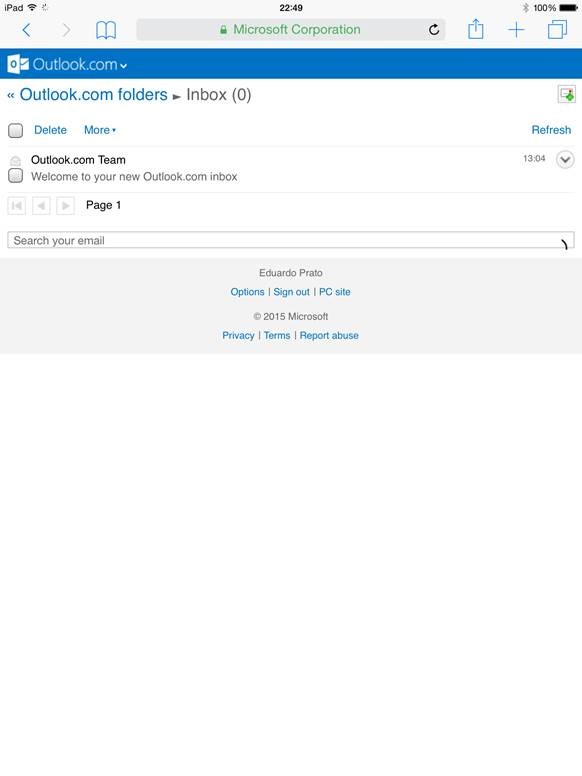
- Press on the ‘PC site’ link (blue link, next to the Options / Sign out / links in the middle of the page)
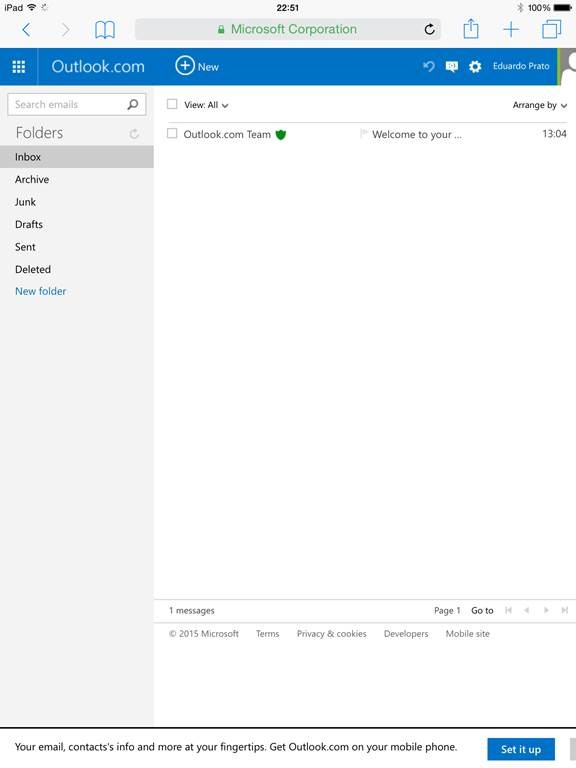
- Once on the PC site, press the ‘Settings’ link (the gear sign next to your name, in the picture below, next to ‘Eduardo Prato’)
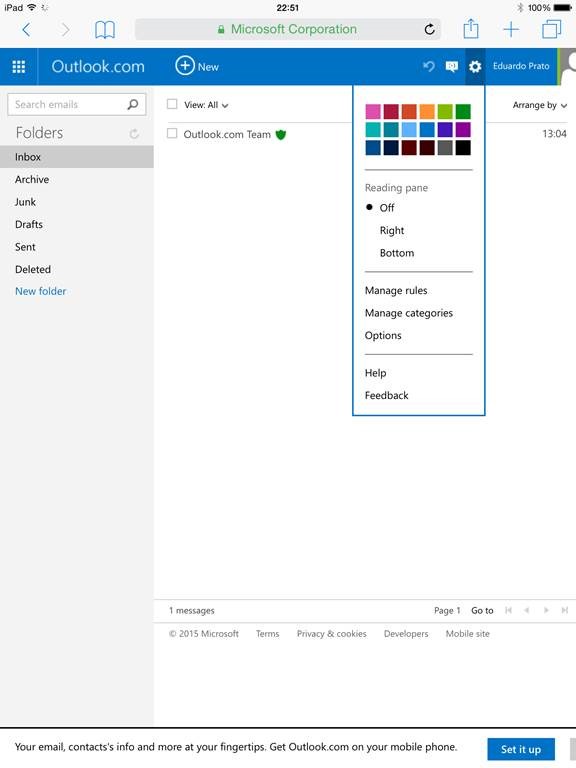
- Once in the ‘Setting’ menu, select ‘Options’ (underneath ‘Manage rules’ and ‘Manage categories’)
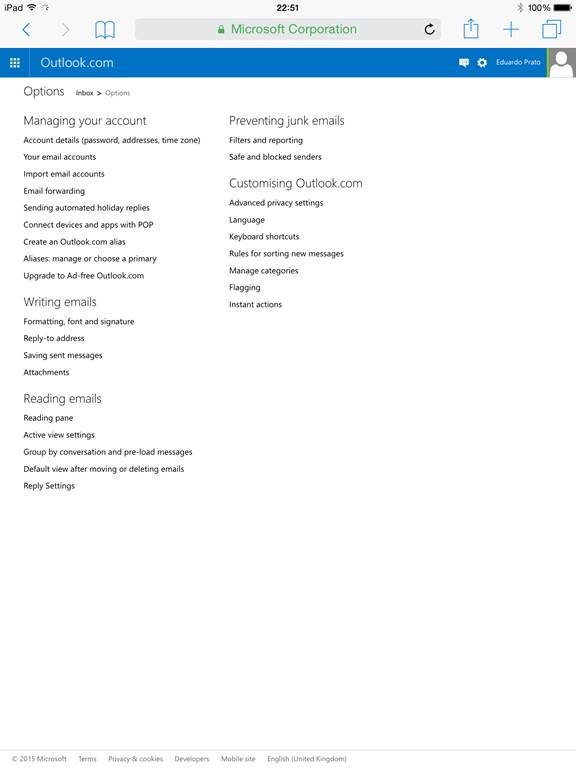
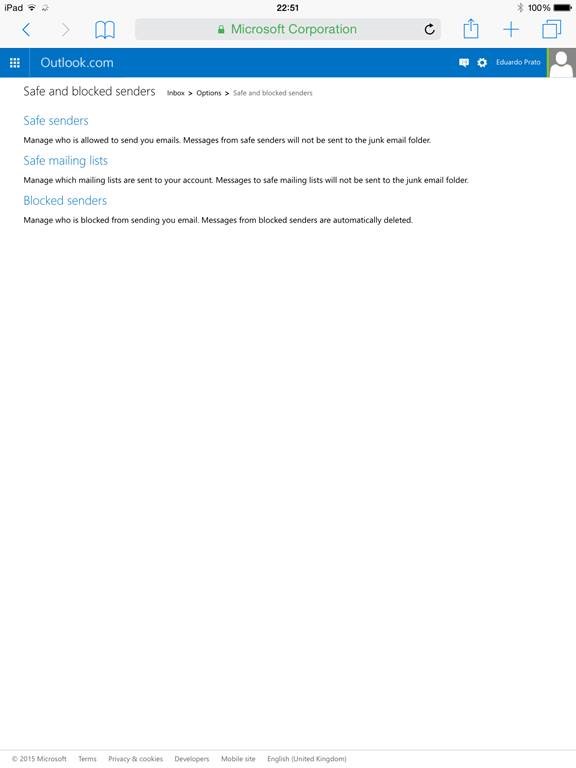
- Select ‘Safe and blocked senders’ (right column in the picture below)
- Select ‘Safe Senders’ (first option)
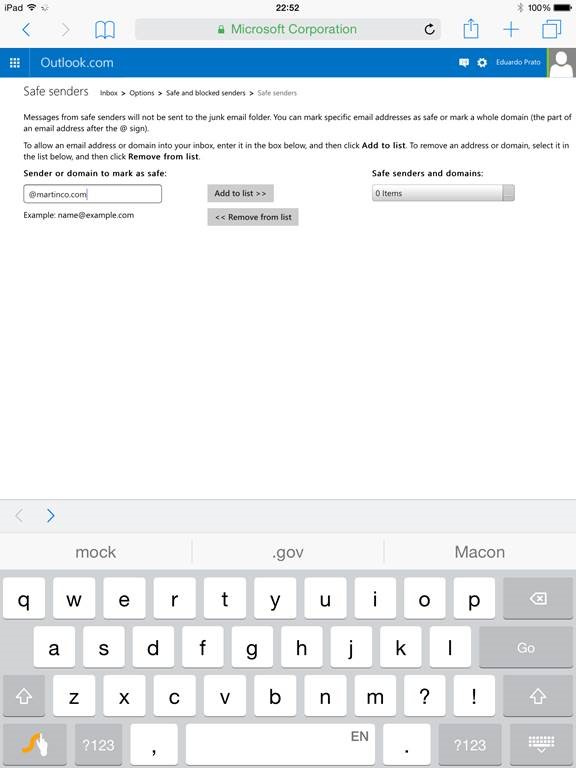
- Enter ‘@martinco.com’ as a safe domain (in this way anything sent from us will reach your account and won’t be sent to the junk folder). To be extra safe also add ‘aberdeen@martinco.com’ as a safe sender. Enter one domain / email at a time and press ‘Add to list >>’.
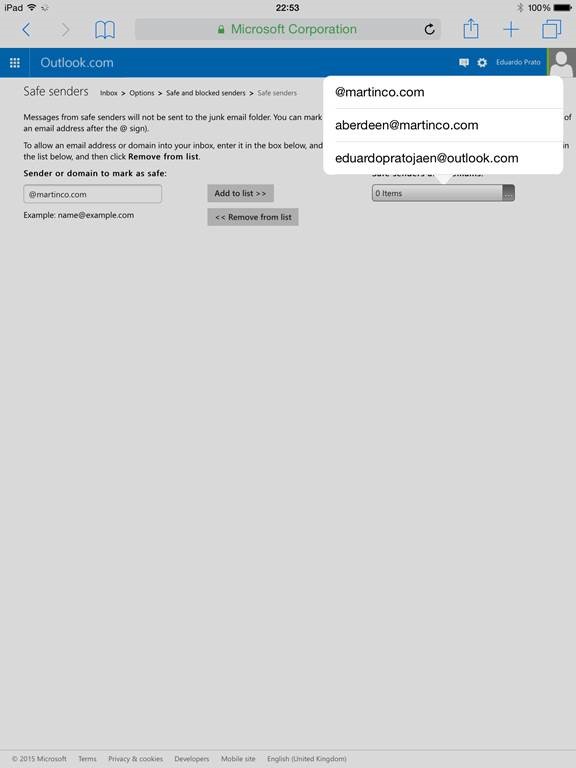
- After entering the safe senders (i.e. @martinco.com and aberdeen@martinco.com), check that both are in the list of Safe Senders by selecting ‘Safe Senders and Domains’ link on the right hand area of the screen.
Comments
0 comments
Please sign in to leave a comment.